Data recovery programs are specialized tools designed to restore deleted, corrupted, or inaccessible files from storage devices such as internal hard drives, external hard drives, SSDs, USB flash drives, and memory cards. They work through algorithms that analyze disk sectors in search of data that has not yet been overwritten, offering the possibility of recovering documents, images, videos, emails, and other file formats.
In simple situations, such as accidental deletion, Windows and macOS offer native features (File History, System Restore, and Time Machine) that can reverse recent changes. In addition, keeping up-to-date backups is the safest way to recover data. However, in cases of physical failure, mechanical damage, firmware failure, or unintentional formatting, the system’s native tools and backup solutions are no longer effective and, in some situations, continued use of the device may make the problem even worse.
When signs of failure or abnormal behavior appear on the device — such as excessive slowness, error messages, freezing, or unusual noises — the ideal approach is to stop using it immediately and seek professional support. Request a free diagnosis from Bot, a national and international reference in complex data recovery. In modern external hard drives with SMR recording and in SSDs, the less the device is used and the fewer non-professional attempts are made, the greater the chances of effective recovery.
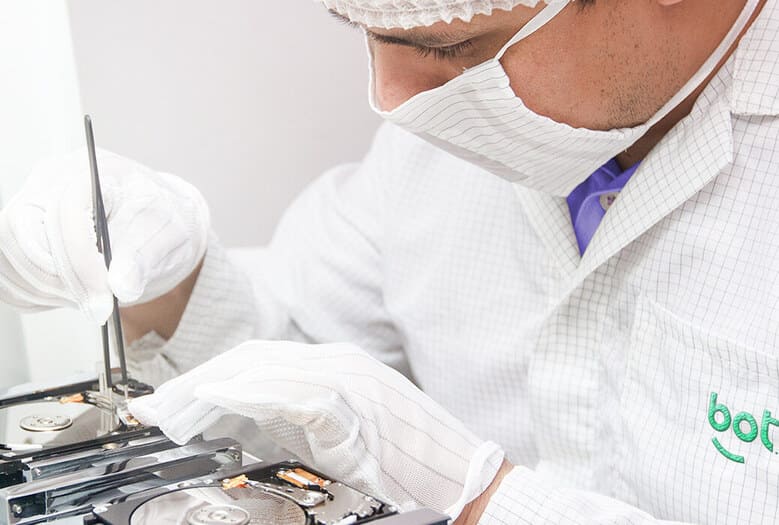
Bot Data Recovery® has high-standard laboratory infrastructure, including the exclusive WhiteRoom®, designed to operate with sensitive media. With more than 200,000 resolved cases and a success rate above 95%, our team combines technical expertise, security, and transparency at every stage of the process.
Would you prefer a safe evaluation before making any attempt? Request a free diagnosis from Bot.

When is it worth using free data recovery programs?
Not every data loss requires third-party software. In less critical scenarios (e.g., recent deletion), it is possible to restore files through previous versions saved by the system or automatic backups. However, in cases of physical failure, mechanical damage, firmware failure, or unintentional formatting, these methods tend to be ineffective and may even worsen the problem. In these contexts, the most recommended course of action is to stop any home attempt and seek a specialized evaluation, such as the one offered by Bot Data Recovery.
Important: no software will be effective if the device is physically compromised. In such situations, continued use may worsen the damage. Especially in external hard drives (SMR) and SSDs, each new write operation may permanently eliminate blocks that are still recoverable — therefore, minimizing usage is crucial.
First of all: native Windows and macOS tools
- Windows: File History, System Restore, and the official Windows File Recovery utility (command line).
- macOS: Time Machine and restoration from snapshots/backups.
How to choose the right software (essential criteria)
- Type of failure: logical (deletion/partition) vs. physical (noise, drops, extreme slowness).
- Compatibility: operating system (Windows, macOS, Linux) and file system.
- Free version limits: allowed MB/GB, preview, and supported formats.
- Best practices: recover to another drive, and avoid installation on the same affected volume.
The 7 Best Free Data Recovery Programs
Criteria of Our Technical Evaluation
To select the 7 best free programs, the technical team at Bot® Data Recovery carried out practical tests in logical data loss scenarios — such as accidental deletion and simple formatting — using CMR hard drives, SSDs, and memory cards. Our goal was to understand the real behavior of each software solution in situations that simulate the daily reality of users and technicians.
The programs were evaluated according to the following criteria:
- 1. Recovery Limit: maximum amount of data (MB/GB) that the free version allows to be restored.
- 2. Usability and Interface (UX): clarity of navigation, organization, and ease of use, especially for those without technical experience.
- 3. Support for File Types: variety of formats (documents, photos, videos, emails, and databases) recognized and available for preview.
- 4. Scan Performance: speed and efficiency in reading damaged sectors and reconstructing partition structures.
The table below summarizes the main characteristics of each tool, helping you quickly identify which one is best suited to your type of need.
Quick comparison of the main software options
| Program | Compatible systems | Free limit | Highlights / Best use | Main limitations |
|---|---|---|---|---|
| Recuva | Windows | Unlimited | Recovery of deleted files on hard drives, SSDs, and USB flash drives; secure deletion option. | Low effectiveness in cases of physical damage or advanced corruption. |
| PhotoRec | Windows / macOS / Linux | Unlimited | Excellent for recovering data from damaged partitions or file systems. | Text-mode interface and need for technical knowledge. |
| TestDisk | Windows / macOS / Linux | Unlimited | Focused on partition reconstruction and MBR/boot repair; recommended for technicians. | Requires experience; non-visual interface. |
| Stellar Data Recovery Free | Windows / macOS | 1 GB | Intuitive interface, recovery wizard, and good performance on external hard drives and SSDs. | Advanced features (RAID, deep formatting recovery) only in paid versions. |
| EaseUS Data Recovery Wizard Free | Windows / macOS | 2 GB | Good success rate in accidental deletions and RAW partitions; easy to use. | Reduced recovery limit in the free version. |
| MiniTool Power Data Recovery | Windows | 1 GB | Good option for light cases and smaller files; clear interface. | Restricted features in the free version. |
| Disk Drill | Windows / macOS | 500 MB | Modern design and additional disk protection and monitoring tools. | Limited recovery; full features only in paid versions. |
The data was collected from tests carried out by Bot®’s technical team and supplemented with official information from the developers.
1. Recuva (Windows)
Developed by Piriform (CCleaner), it offers quick/deep scans on hard drives, SSDs, USB flash drives, and memory cards, along with file preview and a secure deletion option.
Official download/page link: Official Recuva website
Pros
- Completely free and lightweight;
- Simple and straightforward interface;
- File preview.
Cons
- Limited performance in severe corruption cases;
- Windows only.
2. PhotoRec (Windows/macOS/Linux)
An open source project by CGSecurity. It ignores the file system and searches for content signatures, which is useful when the partition is corrupted or the operating system does not mount the volume.
Official download/page link: PhotoRec page (CGSecurity)
Pros
- Cross-platform and free;
- Effective in damaged partition/file system scenarios;
- Broad format support.
Cons
- Text-mode interface (less beginner-friendly);
- Post-scan organization may require manual sorting.
3. TestDisk (Windows/macOS/Linux)
PhotoRec’s sister tool focused on partition, MBR, and boot sector repair. It helps recover the logical structure in order to then allow access to the data.
Official download/page link: TestDisk page (CGSecurity)
Pros
- Excellent for deleted/corrupted partitions;
- Open source and cross-platform;
- Advanced feature set for technicians.
Cons
- Requires technical knowledge and attention when used.
4. Stellar Data Recovery Free (Windows/macOS)
A popular software option for home and intermediate recovery. The Free edition allows recovery of up to 1 GB of data from hard drives/SSDs, USB flash drives, and memory cards, with quick and deep scans as well as preview of recoverable files.
Official download/page link: Stellar Data Recovery Free
Pros
- User-friendly interface, with a step-by-step wizard for beginners;
- Wide support for file types and useful filters during sorting;
- Available for Windows and macOS, with preview before recovery.
Cons
- 1 GB limit in the free version (suitable only for small losses);
- Deep scans may take a long time on large media or devices with many errors;
- Advanced features (e.g., partitions/RAID) only in paid versions.
5. EaseUS Data Recovery Wizard Free
One of the best-known tools on the market. It has a good success rate in accidental deletion, formatting, and RAW volume scenarios. The Free version usually allows recovery of only a small amount of data (limited MB/GB).
Official download/page link: EaseUS Data Recovery Wizard Free
Pros
- User-friendly interface and filtering features;
- Quick and deep scanning;
- Preview before recovery.
Cons
- Free version with a limit on recoverable volume.
6. MiniTool Power Data Recovery Free
A free option with a simple interface and good preview capabilities. Recommended for small volumes and light logical losses.
Official download/page link: MiniTool Power Data Recovery Free
Pros
- Clear navigation by file type;
- Good preview.
Cons
- Data limit in the free version (small volumes).
7. Disk Drill (Windows/macOS)
Focused on usability, with extra protection/monitoring features. The free edition is suitable for testing and small recoveries.
Official download/page link: Disk Drill (CleverFiles)
Pros
- Modern and intuitive interface;
- Works on Windows and macOS;
- Auxiliary data protection tools.
Cons
- Free version with very limited recovery capacity;
- Some features available only in paid plans.
Best practices to increase the success rate
- Stop using the device as soon as you notice the loss;
- If possible, create a clone and work on the copy (read-only mode);
- Recover to another drive to avoid overwriting;
- External hard drives (SMR) and SSDs: avoid repeated software attempts and any write operations; each write may drastically reduce the chances of success;
- If there are noises, drops, or extreme slowness, seek professional support.
Quick questions (FAQ)
Can free software solve accidental formatting?
In some cases of light logical loss, yes. But avoid writing new data to the same drive and recover to another volume. If there are signs of physical damage, stop testing and seek specialized help.
What should I do if the drive is making noise or is very slow?
It is not recommended to continue using it. Turn off the equipment and request a free diagnosis.
Can I install the program on the same affected drive?
Ideally, no. Install it and save the recovered data to another drive to avoid overwriting and permanent loss.
Conclusion
Data recovery using free programs can be useful in light situations, but it still requires careful analysis and the use of proper technical procedures. Before attempting any scan, formatting, or repair, it is essential to stop using the device and ensure that the original data is preserved through a safety copy or disk image. With the right method, it is possible to restore access without compromising the information.
When there is suspicion of physical damage, bad sectors, or firmware failures, the intervention should be carried out by professionals. This is where Bot Data Recovery can help.
With its own laboratories and the exclusive WhiteRoom®, Bot performs diagnostics and recoveries in a controlled environment, ensuring the integrity of devices throughout the entire process.
We offer free shipping from anywhere in Brazil, a free diagnosis within 48 hours, and specialized technical follow-up at every stage.
👉 Start your recovery right now.
International trust, real results:
- More than 200,000 successfully resolved cases;
- 95% average satisfaction among our clients;
- Operations in Brazil, Portugal, and Spain with our own infrastructure;
- A reference in hard drives, SSDs, RAIDs, and physically damaged devices;
- Technical, human support with no fine print.
We hope this content has helped you understand how to choose and use free data recovery programs safely — and when to seek professional help.
This content was produced by the technical team at Bot Data Recovery, a multinational leader in advanced data recovery solutions.
Additional technical reading:
• TecMundo — 7 Best Data Recovery Software Programs
• TechRadar — Best data recovery software in 2025 (in English)