“The location is not available” is a recurring error in Windows versions, usually displayed through a pop-up as soon as the system starts.
The issue commonly appears after operating system updates, although it may also occur in other situations.
When this happens, the desktop becomes inaccessible, preventing basic functions such as accessing the Start menu, using Windows search, or interacting with the taskbar.
As a result, operations such as copying, moving, or opening saved files are blocked, making computer usage extremely limited.
This is therefore a critical failure that leads many users to seek urgent solutions to restore normal system functionality.
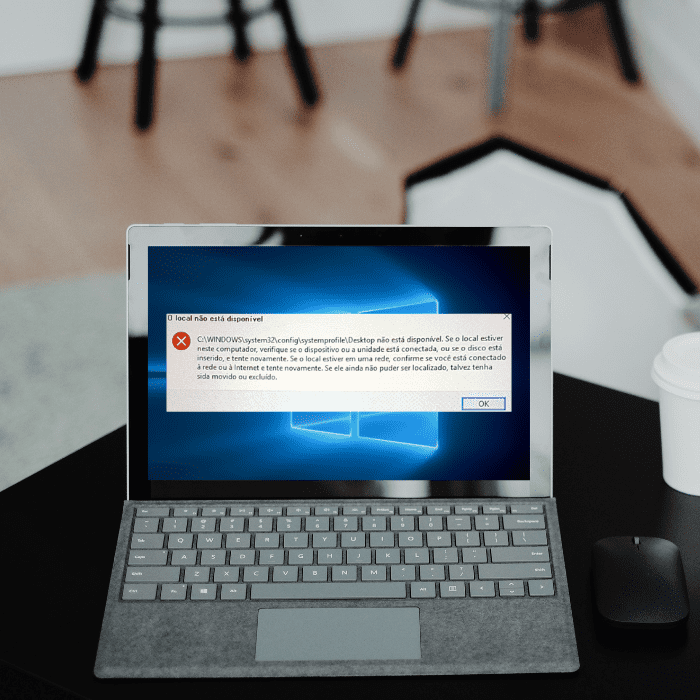
Why does the computer say “location is not available”?
This error is often related to misconfigured administrator permissions, whether changed manually, by updates, or due to malware infection. Permission restrictions may prevent the system from accessing essential directories, blocking the entire desktop.
Situations where the “location is not available” error may occur
Several factors can cause this error. Below are the most common:
The volume does not contain a recognized file system
This warning appears when accessing a drive (external HDD, USB drive, SD card, etc.) whose file system is corrupted or in RAW format, which is not recognized by Windows. This issue usually results from failures in the partition table or boot sector.
The parameter is incorrect
Events such as abrupt disconnection, faulty USB ports, or bad sectors on the disk can compromise the drive’s metadata, leading to this error. In such cases, formatting the disk may be the only solution, requiring specialized services to attempt data recovery.
Access denied
When trying to open a folder or drive, the message “Access denied” may appear, indicating permission restrictions, drive corruption, or malware presence.
The file or directory is corrupted and unreadable
Failures in the MFT (Master File Table) or FAT (File Allocation Table) may render files and directories inaccessible.
CRC error
The CRC (Cyclic Redundancy Check) detects inconsistencies in stored data. Disk corruption, misconfigured files, or failed installations are common causes.
The specified network name is no longer available
This is often related to failures in the SMB protocol, firewall or antivirus blocks, or version incompatibility between systems.
6 solutions to fix the “location is not available” error
Solution 1: Access Safe Mode with Networking
- Restart your computer;
- On the login screen, press Shift and click Restart at the same time;
- Go to: Troubleshoot > Advanced Options > Startup Settings > Restart;
- Press F5 to start Safe Mode with Networking.
Solution 2: Take full control of the folder
- Right-click the folder and go to Properties;
- Go to the Security tab and click Edit;
- Add your user (or select it) and check “Full control”;
- Apply changes and restart if needed.
Solution 3: Take ownership of the folder
- Go to Properties > Security > Advanced > Change owner;
- Enter your username or “Administrators” and click OK;
- Check “Replace owner on subcontainers and objects”;
- Save changes and restart if necessary.
Solution 4: Reset authenticated user permissions
- Open Properties of the folder or drive;
- Go to Security > Edit > Add;
- Type “Authenticated Users” and confirm;
- Check “Full control” and apply.
Solution 5: Run CHKDSK via Command Prompt
- Type “cmd” in Start, right-click Command Prompt and select “Run as administrator”;
- Run:
chkdsk E: /f /r /x(replace “E” with your drive letter); - If prompted, confirm with “Y” and restart.
Solution 6: Use System Restore
- Search for “Create a restore point” in Start;
- Click System Restore;
- Select a restore point before the issue;
- Confirm and restart.
How Bot can help you
If your system shows the error “The location is not available” and you have lost access to your files, Bot Data Recovery can help efficiently and safely.
We operate with our own lab and exclusive technology such as WhiteRoom®, a controlled environment that allows precise work on corrupted or physically damaged devices.
We offer free shipping, free diagnosis within 48 hours, and direct support from specialists in HDDs, SSDs, RAIDs, and monolithic devices.
👉 Start your data recovery now and join over 200,000 successfully resolved cases.