


Are you trying to open files on your computer without success? Has the system warned you that your hard drive is corrupted? Or do you hear strange noises when you try to open a folder?
With physical damage, software and home repairs can make the case worse. In those cases, hard drive and external drive recovery is done in a lab, starting with a free diagnosis.
These are all signs of a faulty hard drive. When this happens, some or all of your files become inaccessible – and the hard drive usually holds important files we do not want to lose.
In this article you will learn how to spot a faulty hard drive before you lose data, and how to prevent hard drive problems in the first place.
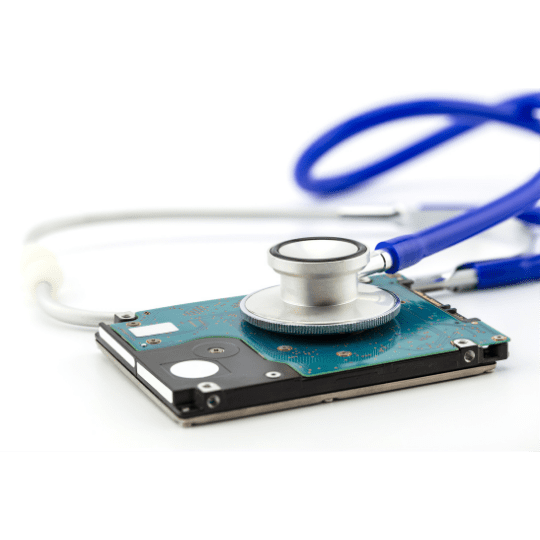
Hard drive problems: how to spot them
When you are ill, your body gives you signs – a fever or a cough, for example – that something is wrong. Your hard drive is no different: it shows some common symptoms when something is not right.
These are some of the signs of a faulty hard drive:
The computer slows down or freezes frequently
If your computer starts to slow down or freeze while you are using it or opening files and folders, your hard drive may have a problem. This is often one of the first signs.
Files will not open
Besides slowing down and freezing, the computer may also struggle to open files when the hard drive is faulty or has bad sectors. The system may show an error message when you try to open them.
The computer shows a blue screen
The Windows blue screen is another common symptom of a faulty hard drive. If it appears when you turn on your computer or while you are using it, often after slowdowns or freezes, it is worth checking your hard drive.
Data keeps getting corrupted
Sometimes, when you try to open files and folders, Windows warns you that the data on your hard drive is corrupted. This may indicate bad sectors caused by a physical defect, a software problem or malware that corrupts the data.
The computer makes strange noises
Strange noises can also tell you that your hard drive is faulty. They usually point to a physical defect, such as broken or misaligned parts. If you hear them, turn off the computer and stop using the drive.
Hard drives are mechanical: basically, read/write heads on an arm read and write data on platters that spin at high speed. A sudden impact or a fall can therefore damage the internal parts and stop them working properly.
Windows doesn’t recognize the hard drive
A faulty hard drive may not be recognized by Windows: you turn on the computer or connect the external drive, and the drive does not show up in File Explorer or Disk Management.
Sometimes this has other causes, such as a faulty cable or USB port (with external drives) or a bad connection to the motherboard. In that case, it is worth testing the drive on another computer. But it is often a symptom of a problem with the drive itself.
A diagnostic tool reports a problem
You can also use diagnostic tools to identify a failing hard drive. CrystalDiskInfo and Hard Disk Sentinel are two examples: they read the drive’s health (SMART) data and warn you about any problems found.
Data recovery programs such as EaseUS and Recoverit scan the drive to find and recover files, but they do not repair it. Use them carefully, save the recovered files to a different drive, and do not use them on a drive that is making noises, so as not to put your data at risk.
How long does a hard drive last?
A hard drive typically lasts around 5 to 10 years. But this varies a lot depending on the brand and quality of the drive and on how it is used and looked after.
A study by Backblaze found that 80% of the hard drives they used lasted 4 years, and estimated that at least 50% would last 6 years.
The symptoms of a failing drive described above tend to become more frequent as the drive nears the end of its life.
So as your hard drive gets older, keep an up-to-date backup of your files on another device or in the cloud. That way, if the drive fails, your data stays safe.
What happens when a hard drive stops working?
Let’s say you have noticed some of the symptoms above, checked the drive and concluded that it has a problem.
When this happens, you lose access to the files stored on it. But that does not mean the data is gone for good: with a 96% success rate, Bot is able to recover data from faulty hard drives in the vast majority of cases.
As soon as you notice a problem, stop using the hard drive and look for a solution, so you have a better chance of recovering your data.
Can a faulty hard drive be recovered?
Yes, in many cases. But the cause of the problem must be diagnosed correctly to find the right solution: it could be a software error, a virus, an electronic fault or physical damage.
When the problem is logical (software-related) and the drive shows no physical symptoms, you can often regain access to your files with Windows’ own tools or data recovery software.
In Windows, you can run Error checking (in the drive’s Properties) or the chkdsk command (in Command Prompt); both repair the file system, so copy your important files first. Data recovery programs are another option: they scan the drive to find and copy your files to another drive, without repairing it.
Be careful with these procedures, as a wrong step can make data recovery impossible. To avoid any risk, the best option is to rely on a specialized company like Bot, with the professionals, equipment and facilities needed to recover data safely.
Furthermore, when a hard drive has a physical problem, it has to be repaired inside before it can be read. Do not try this at home: there is a high risk of making a mistake or contaminating the platters. This work must be done by a specialized company, in a clean room.
Hard drive problems: how to avoid them
Hard drives are reliable, robust devices, but they can fail, especially near the end of their lifespan or when they are not handled with care.
Because a hard drive is mechanical, a fall or sudden impact can damage its parts. It also has electronic components, which can be damaged by humidity, dirt or high temperatures.
To make your drive last longer, take a few precautions:
- Use your computer or laptop on a firm, stable surface so it cannot fall;
- Only move your laptop when it is switched off;
- Do not expose the hard drive to high temperatures, which cause overheating, or to excessive humidity, which can corrode parts and damage electronic components;
- Keep your computer, laptop or external drive clean: dirt blocks cooling and can burn out electronic circuits;
- Use an up-to-date antivirus to protect the drive from malware and, with external drives, only connect them to computers you trust;
- Shut down the computer properly from Windows and, with external drives, eject them safely before unplugging them, so as not to corrupt files.
One more tip: do not open your hard drive at home to try to fix it. Without a controlled environment, dust particles will inevitably get inside and damage it, often irreversibly.
How much does hard drive repair cost?
Repairing a hard drive to recover its data is a job for professionals. Rely on a specialized company to give your data the best chance of a safe recovery.
To set a price, the company needs to make an accurate diagnosis, assessing:
- The electronic and mechanical condition of the hard drive;
- The damage it has suffered;
- The technical feasibility of recovering the data;
- The details of the work required.
Prices vary a lot depending on the condition of the drive; for Bot’s prices, see our pricing page. Also check whether the company offers a free diagnosis and whether there are any costs for sending the drive for assessment.
Read next
How Bot can help you recover your hard drive
Bot is the best-rated multinational in data recovery, serving individuals and businesses.
Our team is made up of experienced professionals, with specialized professional equipment and a Class 100 (ISO 5) clean room. We achieve success rates that data recovery software cannot match – and we do it safely, without putting your files at risk.
Bot can help you recover the data on your hard drive. The standard diagnosis is free, and collection of your device is free too (islands excluded). Fill in the form and start your hard drive recovery with us.


