


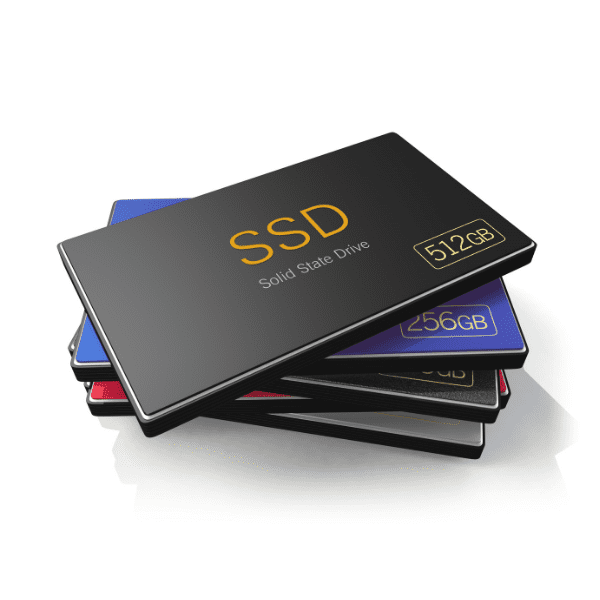
Wear leveling is one of the techniques SSDs use to extend their lifespan. The flash memory cells in an SSD can only go through a limited number of write and erase cycles, and every cycle wears them a little more.
If your SSD already shows signs of wear and holds important files, back it up now. If that is no longer possible, see Bot’s SSD data recovery.
Wear leveling works automatically and doesn’t need to be switched on, but it’s worth understanding what it is and what it does, since it plays an important part in your SSD’s performance and endurance.
Read on to find out everything you need to know about SSD wear leveling.
What is SSD wear leveling?
Wear leveling is a function built into SSDs that significantly extends their useful life. It spreads write and erase cycles across the memory so that no part of it wears out prematurely.
In simple terms, an SSD is made up of blocks, and each block contains pages where data is written. Data can be erased and rewritten many times, but the more often this happens, the more the block wears out.
To deal with this, the controller, which sits between the computer and the SSD’s flash memory, gives priority to blocks that haven’t been used yet or that have been erased fewer times.
This process is called wear leveling. Its aim is to avoid rewriting the same blocks over and over again, which would wear them out faster.
This way, writes are spread more evenly across the whole SSD and no group of blocks wears out sooner than the rest.
Remember that blocks are made up of pages and each page holds a portion of data. However, data can only be written page by page and erased block by block, never one page at a time.
So when data is updated, the controller doesn’t overwrite it in place: it writes the new version to a free page in another block and marks the old page as invalid.
Later, when a block contains mostly invalid pages, the controller copies the pages that are still valid to another block and then erases the whole block so it can be used again. This process is called garbage collection.
What is wear leveling for on SSDs?
Wear leveling helps SSDs last longer and keeps their performance stable for more time.
Since each block can only be erased a limited number of times before it wears out, wear leveling keeps the number of erase cycles balanced across all blocks. This prevents some blocks from wearing out much faster than others and the SSD from failing after a short period of use.
If you want to know more, read our article on how to extend the lifespan of your SSD.
SSD Wear Leveling
Whether you see it written as “wear leveling”, “wear-leveling algorithm” or “SSD wear leveling” in specifications and reviews, it always refers to this same controller function.
Two types of wear-leveling algorithm
Dynamic
Dynamic wear leveling deals with blocks that hold frequently changing data, in other words, blocks that are erased and rewritten often.
When new data is written, this algorithm chooses the free blocks with the fewest erase cycles, so that these blocks wear out at a similar rate.
Static
Static wear leveling also takes into account blocks that hold static data, that is, data that is written once and rarely changes, such as system files or archived photos.
When the blocks used for frequently changing data reach a certain level of wear, the static algorithm looks for a block holding static data to make a “swap”.
It moves the static data to a more worn block, which from then on will hardly be rewritten, and frees the little-used block for frequently changing data.
This keeps the static data safe in a block that will rarely be rewritten, while freeing a block that can still withstand many erase and write cycles.
Overprovisioning
Overprovisioning (OP) is a portion of the SSD’s flash memory that is reserved for the controller and isn’t available to the user for storing files.
This matters because an SSD gets slower as it fills up: there are fewer free blocks available for new writes and for the controller’s internal housekeeping.
The controller uses this reserved space for garbage collection, wear leveling and replacing blocks that fail, so it always has free blocks to work with, even when the drive is almost full.
Benefits of overprovisioning (OP)
Overprovisioning improves SSD performance and often increases its endurance, because the controller has more NAND flash at its disposal to spread wear throughout the drive’s life. Here’s how:
How OP increases SSD performance
As the SSD fills up, there are fewer free blocks available for new writes.
With overprovisioning there are always free blocks in reserve, so writes are faster and the controller has to do less work moving data around than on an SSD where every block is in use.
How OP increases SSD endurance
Overprovisioning helps the SSD last longer because it gives the wear-leveling and garbage collection algorithms room to work properly.
This reduces the number of extra writes the controller has to make, so the blocks wear out more slowly and the drive lasts longer.
Maintaining performance and endurance with overprovisioning (OP)
Every SSD comes from the factory with some overprovisioning. If you want more, you can reserve extra space yourself.
To do this, shrink the SSD’s partition in Disk Management and leave the freed space unallocated. The SSD controller can then use that space as extra overprovisioning, as long as TRIM is enabled, which it is by default in Windows 10 and 11. Back up your data before resizing any partition.
In Windows, follow these steps:
- Right-click the Start button;
- In the menu that appears, click “Disk Management”;
- At the bottom of the window you’ll see a map of the partitions on each disk;
- Right-click the partition on your SSD that holds your data, usually shown with a letter such as “C:”, and click “Shrink Volume”;
- The amount of space to set aside for overprovisioning is usually between 7% and 28% of the SSD’s total capacity;
- Many people choose around 14%. Work out that percentage and enter it as the amount of space to shrink;
- Once the volume has been shrunk, leave the new unallocated space as it is: don’t create a new volume on it;
- That’s it: the SSD controller can now use that unallocated space as additional overprovisioning.
Remember not to create partitions or store files in that space; always leave it free. That’s what gives the controller its extra room.
In the drive’s properties you’ll also find the “Optimize” tool, which on SSDs runs TRIM instead of a traditional defragmentation.
How long does an SSD last?
No storage device lasts forever, and there’s no way of knowing exactly how long an SSD will last. Its lifespan depends on several factors, above all how intensively and how often it is used.
An endurance test by The Tech Report, for example, suggested that even someone writing and deleting 256 GB of data every day could keep some SSDs running for more than two decades.
Of course, this is not a rule, and manufacturers’ warranties cover much shorter periods, usually expressed in years and in TBW (terabytes written).
Want to extend the life of your SSD? Here are some tips that will help.
Avoid extreme temperatures
Keep an eye on your SSD’s temperature, as extreme heat or cold can damage it and shorten its lifespan. Avoid exposing it to temperatures that are too high or too low, and to sudden changes in temperature.
SSDs are very robust, but like any electronic device they can fail after repeated thermal shocks, especially over long periods.
Avoid power cuts
Power cuts are usually beyond our control. Even so, it’s worth paying attention to them, because sudden outages can cause corrupted files, data loss and damage to the computer’s hardware.
So have a plan B, such as a UPS (uninterruptible power supply), to stop power cuts from shortening the life of your SSD and other components.
Don’t fill your SSD to the brim
Some SSDs have plenty of capacity, but that doesn’t mean you should fill them completely. As with hard drives, it’s best to always leave some free space (around 25% of the total capacity) so that the drive can work properly.
An SSD that is too full can suffer from errors, failures and slowdowns that affect the whole computer.
Protect your SSD for optimal performance
Take these tips seriously: they will keep your SSD working properly for longer and help you avoid losing important data and files.
If, even after following these recommendations, your SSD still has problems, we can help. Bot carries out data recovery from SSDs of all makes and models, quickly and safely.
Don’t let a problem with your SSD cost you your data: talk to us and get answers to all your questions about the process.


