


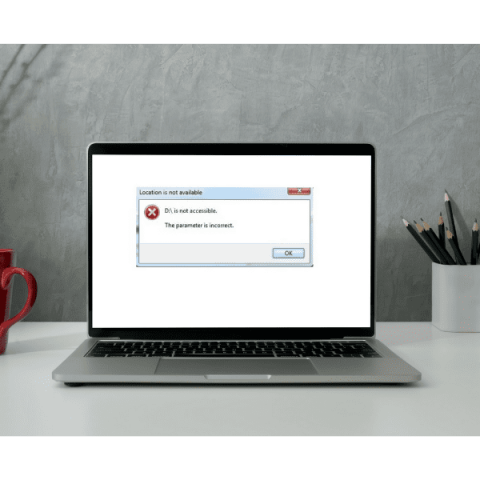
Have you ever plugged in a drive and got a message saying “The parameter is incorrect”? When this error appears, Windows can’t open the drive or the data on it, so knowing how to deal with it — and how to do it without putting your files at risk — matters, and it’s usually urgent.
Errors like this can have a logical or a physical cause, and repeated repair attempts can make things worse. If the files matter, see how hard drive data recovery works, starting with a free diagnosis.
Here’s what you need to know.
What does “The parameter is incorrect” mean?
In short, it’s a Windows error (common in Windows 7, 8, 10 and later) that stops you from accessing a drive and its data. It usually points to a damaged file system or to read errors on the disk itself.
It most often affects USB flash drives, external hard drives and SD memory cards, and shows up as a message such as “E:\ is not accessible. The parameter is incorrect.”
What causes the “parameter is incorrect” error?
Does this sound familiar? These are the most likely causes:
- Physical damage to the drive;
- Virus or malware infection;
- Unplugging the drive without using “Safely Remove Hardware” / Eject;
- Power surges or power cuts;
- A large number of bad sectors;
- A corrupted file system.
These are the usual suspects. Sometimes the cause is much simpler, such as a faulty or loose connection, and checking the cable of your external hard drive is enough to fix it.
Make sure both ends of the cable are firmly plugged in, try a different USB port and, if you can, a different cable or computer to see whether the problem persists.
If that doesn’t help, read on before trying anything else. If the drive clicks, makes unusual noises, isn’t detected properly or holds files you can’t afford to lose, stop here: every repair attempt writes to the disk and can make recovery harder.
How to fix “The parameter is incorrect”
If the error persists and the drive shows no signs of physical damage, these are the usual options. If the data matters, recover it first — the solutions below change the disk and, in the case of formatting, erase it:
Solution 1: Run CHKDSK
The Command Prompt, a tool built into Windows, can be used to check and repair many disk and file system errors.
CHKDSK is a command that scans the drive and tries to repair the file system errors behind the “parameter is incorrect” message. Bear in mind that it writes to the disk: on a drive with bad sectors or physical damage it can make data loss worse, so only use it if your files are backed up or you don’t need them. The steps are:
- Connect the external drive, SD card or USB flash drive to your computer;
- Open the Command Prompt as administrator.
In Windows 7, type cmd in the Start menu search box, right-click cmd.exe in the results and choose Run as administrator.
In Windows 8, 10 or 11, type cmd in the search box, right-click Command Prompt and select Run as administrator.
- Type chkdsk E: /f /x /r and press Enter.
Remember to replace E with the letter assigned to your drive. The /r option scans the whole surface and can take hours on a large disk. When it finishes, close the Command Prompt and try opening the drive again.
Solution 2: Run an SFC scan
Sometimes the problem isn’t the drive but Windows itself: some of its system files are corrupted or missing.
In that case, System File Checker (SFC) can help. It only checks and repairs Windows system files, not the external drive. Here’s how:
- Open the Command Prompt as administrator, as in the previous solution;
- Type sfc /scannow and press Enter;
- Close the Command Prompt when the scan is complete.
Then restart your computer and reconnect the drive to see whether the error is gone.
Solution 3: Scan with a reliable antivirus
This one is simple: make sure you have a reliable, up-to-date antivirus program installed on your computer.
Then run a full scan, including the affected drive. If malware is causing the problem, the antivirus should detect and remove it.
Solution 4: Format the drive (this erases your data)
The last resort is to format the drive. A quick format in Windows creates a new, empty file system and usually makes the drive usable again — but it wipes all the data on it. Only format if you don’t need the files or have already recovered them, and never format a drive that has bad sectors or physical damage if you still want its data.
To format the drive:
- Connect the drive showing the error to your computer;
- In File Explorer, find the drive and right-click it;
- Select Format;
- Under File system, choose NTFS for internal hard drives, FAT32 for USB flash drives and memory cards of up to 32 GB, or exFAT for larger external drives and cards;
- Click Start.
Need to recover data from a drive showing “The parameter is incorrect”?
Still can’t access the files on your drive because of this error? We can help: start your data recovery with Bot.
To get started, your device needs to reach one of our labs, where our technicians diagnose the fault, assess whether recovery is technically feasible and send you a quote. Just fill in the form on our website and choose how you’d like to send the device.
You can either use our free collection service (islands not included) or drop the device off at one of our reception points.
Want to know more about our work? Follow us on social media:


