


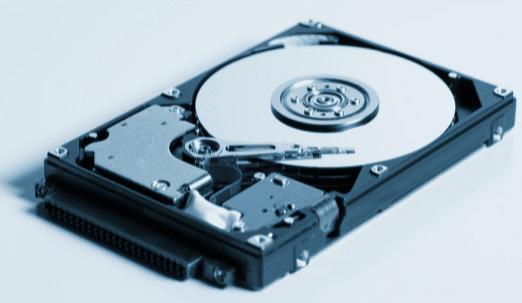
Disks are one of the main ways of storing digital data, which makes them essential for any computer to work.
If your hard drive already shows signs of wear and holds important files, back it up now. If that is no longer possible, see Bot’s hard drive and external drive recovery.
But they are also very sensitive devices and often run into problems. So the question is: how do you know if your disk is in good health? The good news is that disks usually give out warning signs.
Before a disk “dies” completely, it often shows signs that let you tell whether it’s healthy or not. Spotting them early helps you limit the damage of losing the device and the data on it.
In this article, you’ll learn how to tell whether your disk is in good shape.
And remember: if you’re having trouble recovering data from a disk, just get in touch with us.
At Bot, we have a qualified data recovery team that works with all the necessary security, in controlled environments and with specialized equipment. Collection of your device is free (islands not included), and so is the standard diagnosis.
How can you tell if a disk is healthy?
It isn’t difficult. A disk usually gives off signals when something isn’t right, so watch out for the signs below and act before you lose your data.
1. It’s slow, freezes or shows a blue screen
This can be a sign that a disk isn’t in good shape. If your computer freezes often, takes a long time to open files, restarts on its own or even shows the famous “blue screen”, your hard disk may be failing.
These symptoms aren’t exclusive to disk problems, but they’re a clear sign that it’s time to back up your files right away.
2. Files are getting corrupted
Another sign to look out for is corrupted files. If this happens often, the disk may be defective or reaching the end of its useful life.
Typical signs of a failing disk include files suddenly disappearing, files that won’t open or become corrupted, and problems saving files.
This probably means there’s already a problem somewhere on the disk, so make a backup without delay.
3. It makes strange noises
Strange noises usually point to mechanical damage inside the hard disk. If you hear clicking, scraping or other unusual sounds while it reads or writes data, the disk is not in good condition.
The noises may be caused by damaged read/write heads, for example. This is especially common in laptops, which are often knocked about when carried in backpacks.
If this is your case, switch the computer off and don’t keep trying to copy files: a disk with mechanical damage can get worse every minute it runs. Contact a data recovery specialist instead.
4. Windows doesn’t recognize the disk
This is another important sign. If Windows has trouble recognizing the disk, the problem is probably serious.
Try the disk on another computer and, if the problem really is the disk, don’t hesitate to contact us so we can help you recover your data.
Diagnostic tools that detect errors
To find out whether a disk is healthy, use diagnostic tools. Here are a few (if the disk makes strange noises, don’t run them — switch it off):
CrystalDiskInfo
This is one of the most popular tools available. CrystalDiskInfo, developed by Crystal Dew World, is completely free and reads the disk’s S.M.A.R.T. data to show its health status and the most common warning signs, so you’re prepared before damage occurs.
It flags problems as they appear and alerts you when it’s time to make a backup.
HD Tune
HD Tune is an excellent tool for checking the state of your disk. It shows the disk’s status in real time with graphs. With it, you can:
- Check the disk’s speed;
- Scan the disk surface for bad blocks;
- Check S.M.A.R.T. (Self-Monitoring, Analysis and Reporting Technology), the system that monitors the disk’s health.
HD Tune comes in a free version and a paid Pro version. The free version is no longer updated, but you can try the Pro version for free before buying it.
To download HD Tune, click here.
HDDScan
HDDScan is another tool for checking disk health. It’s completely free and lets you run more thorough checks for existing problems.
Like HD Tune, it also shows S.M.A.R.T. reports, indicating which parameters are fine and which aren’t.
You can download it by clicking here.
Check for errors with CHKDSK
Last but not least, there’s CHKDSK (Check Disk), a tool built into Windows, so there’s nothing to download.
CHKDSK checks the disk’s file system for errors and fixes them. Running it every few months is a good general check on a healthy computer — but on a disk that is already showing signs of failure, copy your data first, because the repair writes to the disk.
It’s especially worth running if your computer shuts down unexpectedly or if programs fail to load or crash.
How to use CHKDSK step by step:
- Open File Explorer and click “This PC”. Right-click the disk you want to check and click “Properties”, at the bottom of the menu;
- In the Properties window, go to the “Tools” tab and, under “Error checking”, click “Check”;
- When the “Error Checking” window appears, click “Scan drive”;
- Now wait for the scan to finish. If no errors are found, just click “Close”.
If problems are found, Windows will tell you, and you can see the full report in Event Viewer. Errors that can be fixed are repaired automatically.
Should you replace the disk?
After running all the tests, you may be wondering: should I replace the disk or not?
The test results will tell you what to do. Sometimes the problem is a logical one that a format can fix — but formatting erases everything, so back up first, and it won’t fix a physical fault. Freeing up storage space can also help the disk perform better.
However, if the problem persists after all these steps and the diagnostic tools keep reporting faults, it’s time to replace the hard disk.
Don’t forget: the most important thing is to back up your data regularly, before you lose it. And if something goes wrong, we at Bot can help you recover your data.
Data recovery has to be done safely and with the right strategy. That’s why we recover data from hard disks, SSDs, mobile phones, memory cards, USB flash drives, RAID servers and NAS devices, always in a secure environment.
Want to know more about how we work? Read this article to find out.
If you have any questions, don’t hesitate to contact our team. We’ll be happy to help!


