


You may be dealing with file system error 65535 on an external drive if your computer shows any of these symptoms:
Errors like this can have a logical or a physical cause, and repeated repair attempts can make things worse. If the files matter, see how professional data recovery works, starting with a free diagnosis.
- The PC crashes for no apparent reason, programs take a long time to load, the mouse and keyboard respond slowly and the error message 65535 appears on screen.
- The 65535 error message appears when Windows starts up or shuts down.
- The 65535 error message appears while you are installing or updating the operating system.
If any of this sounds familiar, you need to understand what this error is, why it happens and how to fix it, and that’s exactly what this article covers.
What is file system error 65535?
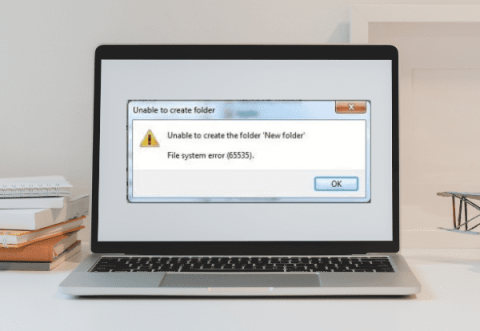
File system error 65535 on an external hard drive is a file system fault in which you can open the drive but can’t perform operations on it, such as creating a folder or copying, changing or deleting files and folders.
If you try to create a folder on the affected drive, the following error appears:
In the worst cases, file system corruption can make you lose all your data, so this error should be dealt with as a priority.
Why does error code 65535 occur?
Like other errors, file system error 65535 can have several causes.
Before jumping straight to the solutions, it’s worth understanding what is really behind it.
Knowing the causes will also help you avoid the error in the future. The most common ones are:
Bad sectors
A bad sector is a sector on a disk that is permanently damaged.
Once a sector is damaged, the information stored in it may become unreadable.
Normally, once a bad sector is detected, the drive and the operating system mark it so it is no longer used.
System crash while Windows is loading or updating
If the computer shuts down while Windows is loading or updating, because of a power failure or for any other reason, the file system can be left damaged and error 65535 may appear on the external drive.
Viruses and other malware on your PC
Every time you go online, you expose your system to some degree of risk.
Once a computer is connected to the internet, it becomes vulnerable to viruses and malware.
The same can happen when you plug an infected USB flash drive or external drive into your PC.
Once installed on your PC, viruses and other malware can trigger file system error 65535 on an external drive.
Unsafe removal of the drive
Many people don’t realize that unplugging a drive the wrong way can cause serious problems.
Always remove the drive safely, for example by choosing the “Eject” option before unplugging it.
Unplugging the drive without ejecting it can cause error 65535.
A sudden power cut
Sudden power outages are one of the most common causes of computer problems.
A power cut can disrupt your PC in several ways, for example by interrupting the hard drive while it is writing data, which can lead to errors such as file system error 65535 on an external drive.
How to fix file system error 65535 on an external drive with CHKDSK
Before you start, keep in mind that CHKDSK writes to the drive. If the drive holds important data that isn’t backed up, or if it shows signs of physical failure (clicking, extreme slowness), recover the data first. Then follow these steps:
- Press “Windows + S” and type “cmd”;
- Right-click “Command Prompt” and choose “Run as administrator”;
- Assuming the external drive is drive E, type
chkdsk E: /f /rin the Command Prompt window; - Replace E with the letter that File Explorer shows for the affected drive;
- Press Enter (and press “Y” if prompted);
- Wait for CHKDSK to scan the drive showing error 65535 and repair the file system and disk errors it finds.
When it finishes, restart the computer and try to open the drive again.
Remember: in some situations, especially with a failing drive, this method can cause data loss.
How to protect your computer against file system error 65535
Now that you know what this error is and what causes it, here are the best ways to keep it from happening again.
Follow these methods carefully:
Back up your data
Some of the fixes for this error, such as CHKDSK, can themselves lead to data loss if something goes wrong.
And losing your data would be a bigger problem than the error itself.
Fortunately, it’s easy to set up a backup routine so you can restore your files if something goes wrong.
Clear out system junk
The simplest method is to remove the junk files that build up on the system, which may help get rid of error 65535.
Back up your data before you start, as one wrong selection could delete files you need.
Then follow these steps:
- Step 1: press “Windows + R”, type
cleanmgrand press Enter; - Step 2: the system will scan the drive for files it can remove;
- Step 3: in the “Disk Cleanup” window, tick the categories of files you want to delete;
- Step 4: click “OK” and wait while the files are deleted. Then check whether the error comes back.
Use SFC to repair Windows system files
SFC (System File Checker) is a built-in Windows tool you can run at any time. It doesn’t repair the external drive itself, but it fixes damaged Windows system files that can cause errors like this one.
To use it:
- Step 1: search for “cmd”, right-click “Command Prompt” and choose “Run as administrator”;
- Step 2: type
sfc /scannowand press Enter; - Step 3: SFC will check the protected system files and repair any problems it finds.
Update your PC
Outdated drivers can sometimes cause problems with drives.
Follow these steps to update your PC:
- Step 1: install the updates through Windows Update or from the hardware manufacturer’s official website;
Step 2: follow the installation instructions and restart the computer.
Use CHKDSK to fix file system error 65535
The Command Prompt also gives you a quick way out through CHKDSK, a built-in Windows tool for fixing this error (with the precautions mentioned above).
To use it, follow these steps:
- Step 1: press “Windows + S” and type “cmd”;
- Step 2: right-click “Command Prompt” and choose “Run as administrator”;
- Step 3: assuming the external drive is drive E, type
chkdsk E: /f /rin the Command Prompt window; - Step 4: press Enter;
- Step 5: wait for the scan and repair to finish, then restart the computer.
Read next
Conclusion
File system error 65535 on an external drive prevents basic operations such as creating folders and copying, changing or deleting files.
It can be caused by bad sectors, crashes while Windows is loading or updating, viruses, unsafe removal of the drive or a sudden power cut.
You can fix it with tools such as CHKDSK in the Command Prompt, but this can lead to the loss of the data stored on the drive.
If that happens, or if the data is too important to risk, you will need a professional data recovery service, like the one we offer at Bot.
With more than two decades of experience, our specialists work every day on drives with all kinds of faults.
With us, your drive is in safe hands. Our trained technicians work in a Class 100 (ISO 5) cleanroom with controlled airborne particles, so drives can be opened without contaminating them.
And if you have any questions, you can reach our team 24/7 on our social networks.
For your convenience, we also collect your device free of charge (islands not included).
We are also quick: our standard diagnosis is free and we send you a quote within 48 hours.


